US Residential IP Guide: How to Choose, Get & Verify Your Setup
2026-11-12 00:00
 Alex
When teams buy a US residential IP, they usually assume they are getting a real household internet line in the United States. While many products share the “US residential” label, they often deliver very different network resources in practice. This guide breaks down the differences between these three resource types, covers the five key buying criteria, and shows you how to check whether your US IP is truly residential.
Common Types of US Residential IP Setups
In the United States, households connect to the internet through consumer Internet Service Providers (ISPs). When devices at home go online, the public address visible to websites is a genuine residential IP address. In the commercial market, however, “home broadband” is only the underlying network source. Providers deliver it through different product formats—and the same format can route traffic through very different physical lines.
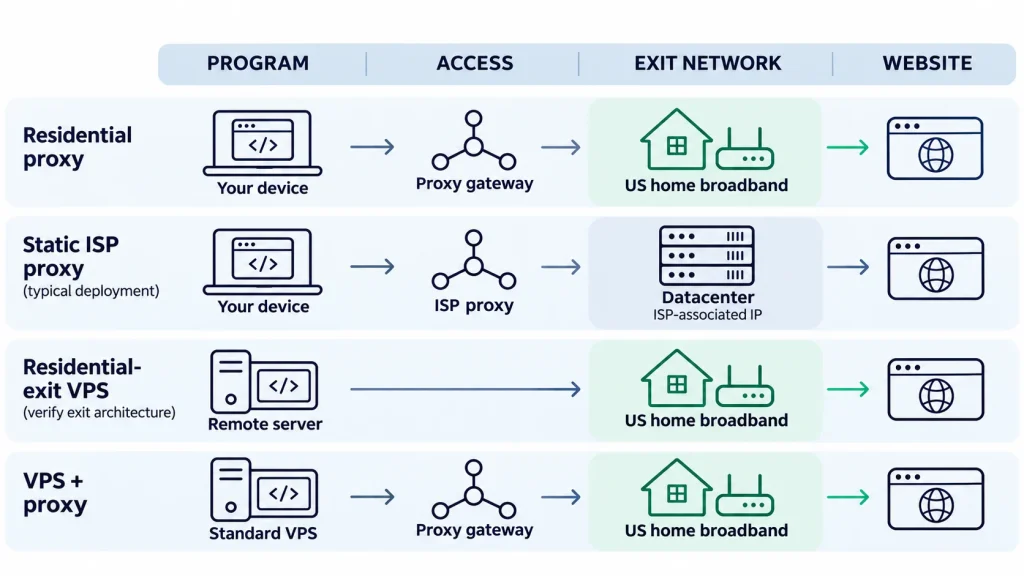
US Residential Proxies
A commercial US residential proxy pools real household broadband connections across the country and provides a unified gateway to access them. You do not need to set up physical broadband in the US yourself; you simply route requests through these residential lines on demand (node sourcing varies by provider, so check your supplier’s resource documentation).
When your scraper or browser runs on a local computer or cloud server, the request path through a residential proxy is straightforward:
- Your program sends the request to the provider’s proxy gateway.
- The gateway assigns a US household broadband node from the pool, and that residential exit accesses the target website.
- The target website sees the US household’s public IP, and the page content returns through the same path to your program.
Because of this, the “proxy gateway address” entered in your software is not the “actual exit IP” seen by the target website. For teams that already have working devices and software, connecting to a residential proxy is the simplest option—you just switch your network exit without changing your existing program.
Static ISP Proxies
Static ISP proxies (often called static residential proxies) connect the same way standard residential proxies do, but the underlying line is usually quite different.
Many static ISP proxies use IP addresses registered under US broadband providers, while the servers sending and receiving requests sit in commercial data centers. When you check one of these IPs in a lookup tool, seeing a “US broadband ISP” alongside “datacenter server location” is not a contradiction—the former reflects database registration, while the latter reflects the physical traffic exit.
When buying, this distinction determines whether the proxy fits your task: if a partner platform asks you to register a fixed US ISP address on an allowlist, keeping that address stable over time matters most, making a static ISP proxy a great fit. If your task strictly requires real US home broadband, you need to verify the actual access line with the provider rather than relying on the ISP label alone.
Residential VPS vs. “Cloud Server + Proxy”
Beyond proxies that forward traffic, some providers offer VPS (Virtual Private Server) plans configured with US residential IPs. Buying one gives you a remote computer where you can log in, install software, and run programs 24/7.
Under the hood, a residential VPS usually uses one of two setups: either the server connects directly to a local broadband line so all traffic exits through home broadband by default, or the server sits in a standard data center and forwards traffic to a residential line via internal routing. Looking at CPU, RAM, and ISP names on a checkout page rarely tells you which setup it uses.
Before ordering, you can narrow down your options based on what your current setup is missing:
| Buying Option | Traffic Exits | Using ways | Best Fit For |
|---|---|---|---|
| US Residential Proxy | Real US household broadband exits in the proxy network | Configure the proxy inside your existing browser or program | Teams that already have devices and software, and only need to use local US home network lines |
| Static ISP Proxy | ISP-registered addresses, often routed from data centers | Use the same fixed proxy IP throughout the agreed lease term | Platforms that require a fixed whitelisted IP, or tasks needing a consistent long-term ISP identity |
| Residential VPS / VDS | Configured by the provider for the remote server, depending on architecture | Log into the remote server to install software and run programs | Users missing both a 24/7 remote environment and a US home broadband exit who want an all-in-one package |
| Standard VPS + Residential Proxy | Proxied apps use the residential exit; other traffic uses the server’s line | Run programs on a standard cloud server and attach a residential proxy separately | Teams that already have cloud servers, or want to buy server hardware and residential proxy lines separately |
How to Choose the Right US Residential IP
Once you know the product formats, walk through these five criteria to lock in the right plan:
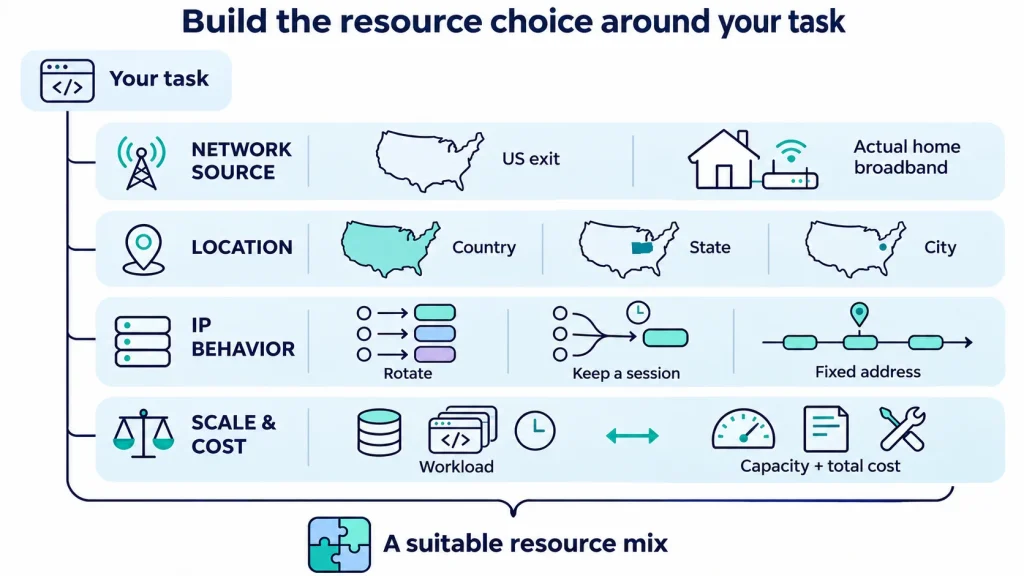
Do You Just Need a US IP, or True Home Broadband?
Not every task accessing US web pages requires higher-cost home broadband. Before buying, identify what your task actually depends on:
- US location only: If your task is simply checking whether a US e-commerce site updated its national catalog—and a standard US datacenter IP loads the page fine—keep using lower-cost datacenter resources.
- True household broadband environment: If you need to see default page recommendations shown to local US users, check locally targeted ads, or access sites that strictly block datacenter ranges, a real household connection is mandatory. Prioritize rotating residential proxies that clearly state their line sourcing.
- Long-term fixed address: If you are calling an authorized partner API that whitelists your IP (allowing only that specific address), whether the IP stays fixed and can be renewed matters more than whether it is home broadband. You only need to verify both conditions when your task requires a real household line and a long-term fixed address at the same time.
How Specific Should Your Location Targeting Be?
How specific your proxy location needs to be depends on how the target website determines user location:
- Viewing nationwide content: Select a country-level (
US) exit without adding narrower location filters.
- Comparing state-level differences: When checking state tax rules, regional policies, or service coverage, filter exits by US state.
- Collecting city or local store info: When a task drills down to specific cities (such as comparing store stock and local prices in Chicago vs. Dallas), remember that page content is shaped not just by your proxy IP location, but also by saved delivery ZIP codes, selected store history, and account settings in your browser. Even if your proxy IP switches to Dallas, a browser cookie still holding a Chicago ZIP code will likely keep showing Chicago stock.
If you only need to check stock at a specific store, manually switching the ZIP code or store on the webpage is usually enough. City-level residential exits are directly valuable when testing which store a website recommends by default to a first-time visitor in Dallas. During testing, clear your browser cache and store history first, then check both the city shown in an IP lookup and the default store recognized by the webpage—this is far more useful than looking at a provider’s advertised total US IP pool size.
How Long Do You Need to Keep the Same IP?
How long a task needs to keep the same US IP determines whether you should use automatic rotation, sticky sessions, or a static fixed IP:
- Single continuous actions (Enable sticky sessions): When you need to complete a connected sequence—like selecting a region, viewing a list, and clicking into a details page—changing IPs mid-flow can easily reset your page state. Enabling a sticky session locks in the same US residential exit for a set window (such as 10 or 30 minutes), working alongside your browser cookies to finish the whole flow smoothly.
- Independent batch tasks (Rotate automatically by rule): Once a full browsing round finishes, or when you switch to the next US city to fetch independent pages, set the proxy to rotate IPs automatically. When buying, focus on whether a single session lasts long enough to finish one round of actions, and whether the system switches smoothly if a node drops offline.
- Long-term fixed access (Buy static IPs): A sticky session only holds a temporary connection for tens of minutes. If your work requires keeping the exact same US address for weeks or months, temporary sticky sessions cannot replace a long-term static IP.
How to Match the Billing Model to Your Workload
Even if two tasks transfer the exact same total data volume (GB) each month, their required proxy setups and actual spend can differ widely:
- Short bursts of high concurrency depend on connection limits; large transfers depend on bandwidth: When fetching tens of thousands of small web pages at once, each request waits for a response, so the concurrent connections allowed by your plan determine whether the job finishes on time (if buying by port, confirm how many concurrent connections each port supports). When transferring large files or video streams, available bandwidth is what dictates speed.
- Match the billing model to your task characteristics:
- Pay-per-GB: Fits spread-out requests and small pages. Note that page images, frontend scripts, and failed retries all count toward your data bill.
- Pay by IP count and duration: Fits tasks that need to hold specific addresses long-term, where cost depends on how many IPs you hold and for how long.
- Bandwidth or port-based “unlimited” plans: Plans like unlimited residential proxies fit continuous, high-volume tasks; the key when buying is confirming whether the bandwidth ceiling can handle your peak workload.
- Day-to-day maintenance costs for long-term runs: Once a task runs on a daily schedule, the provider’s management tools also affect your team’s time cost. Check whether they provide clear API docs for automating locations and sessions, whether the dashboard lets you check traffic logs by time period, and whether support responds quickly when connection issues come up.
How to Combine Resources as Your Needs Grow
You do not need a complex setup on day one. Simply adjust or combine your resources as your task moves through different stages:
- Stage 1: Initial testing and small-scale queries (Local computer + Residential proxy): If you are just starting to test the US market and only need to check a small number of public pages each week, simply configure a US residential proxy in your own computer’s browser or program. There is no need to buy an extra server.
- Stage 2: Running 24/7 on a schedule (Standard VPS + Residential proxy): When your task moves to automated 24/7 daily runs, simply rent a standard cloud server (VPS) to run your programs and keep connecting through your existing residential proxy.
- Stage 3: Running multiple tasks at once (Combine resources as needed): As your business grows and introduces different access requirements, you can pair different resources together:
- Static proxy + Rotating residential proxy: For example, if your team connects to an official data API that requires a whitelisted fixed IP while still collecting public pages across US cities, assign a fixed exit (such as a static ISP proxy) to the API calls and keep using rotating residential proxies for public page collection so neither job interferes with the other.
- Datacenter line + Residential exits: If general data is identical nationwide and loads fine over a standard datacenter IP—while only localized content requires a local household connection—you can let your server fetch general data directly on high-volume runs and save your metered residential proxies for localized content. Conversely, if general pages use very little data, the money saved by splitting traffic across two lines may not be worth the extra maintenance effort, so keeping a single setup is fine.
How to Test and Verify Your US Exit IP
Once you get test access, walk through these three steps before going live to verify that your US proxy meets your requirements:
Confirm Proxy Connection and Your Actual Exit IP
Step one is confirming the proxy is active and getting the actual exit IP seen by the target website (rather than the proxy gateway address entered in your software). You can choose between online batch checking or local terminal commands:
Method A: Batch Check via Online Tool (No Command Line) If you need to test multiple proxy credentials at once, open the ZooProxy Online Proxy Checker. Paste your proxy addresses line by line, select the matching protocol, and adjust concurrency, retries, and timeout settings to verify connectivity and get the actual exit IP for each line in one click.
Method B: Verify via Local Terminal Commands (curl) To test whether your local computer or server can connect smoothly to the proxy gateway, open your terminal (macOS / Linux) and query the same endpoint twice—once directly, and once with the proxy attached. Replace PROXY_HOST, PORT, and USERNAME below with your provider’s info and enter your password when prompted:
Bash
# 1. Direct query: check your machine's original public IP
curl --noproxy '*' --max-time 20 https://api.ipify.org

# 2. Proxied query: check the actual exit IP forwarded by the proxy
curl --noproxy '' --max-time 20 \
  --proxy http://PROXY_HOST:PORT \
  --proxy-user USERNAME \
  https://api.ipify.org
Record both outputs. The address returned by the second command is the US exit IP you need to check next. If you get an authentication error, check your username, password, or whitelist settings; if the connection times out, check the protocol, port, and gateway address. (Note: Hide personal credentials before sharing test logs.)
Check Network Attributes and IP Reputation
With your exit IP in hand, open the ZooProxy IP Address Lookup tool and enter the address to check its registered attributes in the database. Below is a lookup example for the US IP 104.245.12.203:
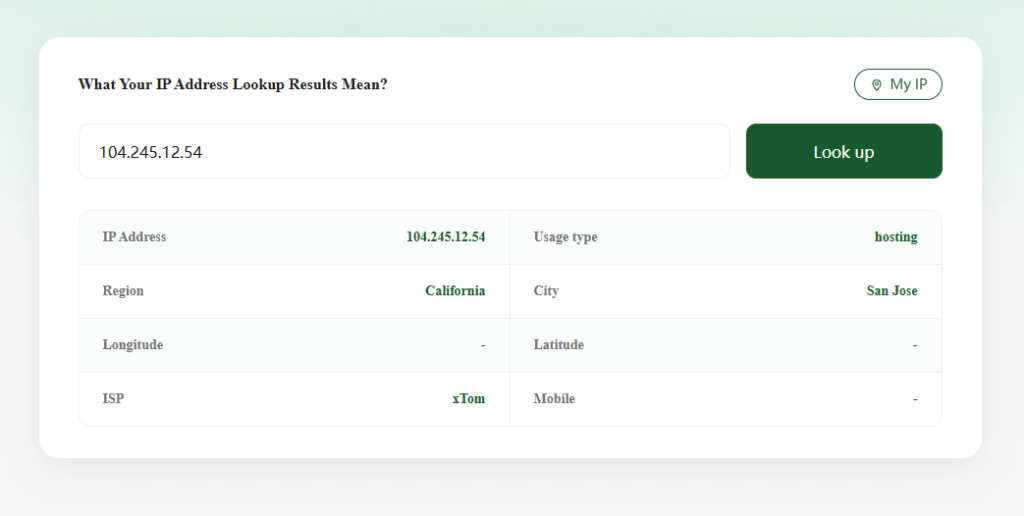
When reviewing the result, focus on three core fields:
- Location (
San Jose): The geographic location assigned to this IP in the database. - ISP (
xTom): The network organization this IP block is registered under. - Usage Type (
Hosting): The network usage category identified by the database.
How to read this result: Although this IP is located in San Jose, California, its provider xTom is a cloud and hosting company, and its usage type is clearly marked as Hosting. This shows it is a datacenter IP rather than consumer home broadband. If your task only requires a San Jose datacenter exit, this result is fine; if your order specifically called for “real San Jose home broadband,” seeing a Hosting label means it does not match your requirements, and you should contact the supplier to verify the actual access line.
How to check IP reputation and blocklists further: What the market often calls “IP purity” has no single industry score. In practice, you can verify two specific metrics:
- IP Reputation: A risk assessment from third-party security platforms based on recent malicious scanning, spam requests, or abuse reports.
- IP Blocklist: Active blocklists maintained by specific organizations for certain tasks (such as anti-spam or attack prevention).
Because standard IP lookup tools mainly show location and ISP ownership, pair them with two free tools when checking abuse history:
- Use AbuseIPDB to check abuse reports: Enter the exit IP to see if other webmasters have recently reported it for abusive access.
- Use Spamhaus to check blocklist records: Check if the IP is listed, paying attention to what each list actually means. For example, real US home broadband IPs often appear on the PBL (Policy Block List)—this simply means the ISP declares that dynamic home broadband ranges should not run their own outgoing mail servers. It is a normal trait of home broadband and does not affect regular web browsing at all.
In short, having residential attributes does not mean an IP was never abused in the past; conversely, having a clean record in third-party databases does not guarantee a target site will allow high-frequency requests. Reputation checks help filter out IPs with obvious bad records, while final usability still needs to be confirmed on your target website.
Test Connection Stability on Your Target Website
In the final step, plug the proxy into your actual workflow to verify that its connection behavior matches the provider’s terms:
- Verify sticky session retention: Start a single session and check the IP when opening the homepage, turning pages, and viewing a details page. As long as the IP stays the same and your login or selected store state does not drop, the session length is sufficient.
- Verify rotation rules: Trigger rotation or a new session by rule and log several returned IPs in a row to confirm addresses switch as configured (if a small target city has a smaller pool, occasionally getting a repeat IP is normal).
- Verify static IP persistence: Disconnect and reconnect, then spot-check over the next few days to confirm the exact same address is kept throughout your project cycle.
Once connection rules pass, run a small test batch directly against your target webpage and log valid results and completion time. If the IP city location is right but the page shows stores from another state, check whether you forgot to clear residual ZIP code cookies or default account addresses in your browser and try again; if page content is fine but batch runs frequently time out, check your concurrent connection limit or slow down your request frequency.
Conclusion
Choosing the right US residential resource comes down to matching the underlying line to your actual task. Before ordering, clarify three conditions based on your work: whether you must use real home broadband, whether location targeting needs to reach the state or city level, and how long the same IP needs to be used. Once you get test access, use lookup tools to verify its network ownership and run a live test on your target website to lock in a stable, cost-effective setup.
Frequently Asked Questions (FAQ)
Why do services sold under "US residential IP" deliver such different product formats?
Because “US residential IP” describes the underlying network source, which providers package into different service formats. If you only need to use US household network exits to forward requests, that corresponds to a US residential proxy; if ISP-registered IPs are hosted on datacenter servers for long-term fixed connections, that corresponds to a static ISP proxy; and if a provider bundles a network exit with a remote computer where you can install software, that corresponds to a residential VPS.
If a lookup result shows a US broadband ISP, does that mean it is definitely real home broadband?
Not necessarily. The ISP name shown in an IP lookup tool only indicates which organization the IP block is registered under in the database—it does not prove traffic passed through a home router. Some static ISP proxies display a US broadband provider while their servers actually sit in data centers. If your task strictly requires a real household line, check that the Usage Type in the lookup result reads Residential rather than Hosting, and confirm the physical access method with your provider.
When buying US residential proxies, is narrower city-level targeting always better?
There is no need to pick the narrowest city targeting by default. When viewing nationwide catalogs, choosing a country-level exit gives you a larger pool of available nodes. City-level exits are only directly useful when testing which local store or local price a website shows by default to first-time visitors in a specific city. Also remember that regional page content is affected by browser cookies, saved ZIP codes, and account settings, so clear those out when testing.